"There is not enough space on the disk" error occurs while collecting a snapshot

Symptoms:
When taking a snapshot, you get the error message `Can't open mapping (system error 112 - There is not enough space on the disk.). dotMemory is unable to complete snapshot processing.
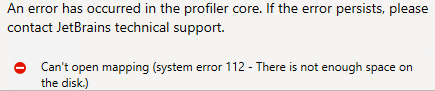
Cause:
There is not enough disk space to record and save a snapshot.
Solution:
Specify other locations with enough disk space for storing workspaces and dotMemory temporary files.
dotMemory 10 or later
- Change the default workspace files location in one of two ways:
- dotMemory Preferences on the standalone dotMemory Home page
- RESHARPER | Options | dotMemory | General settings in Visual Studio
- Specify the path to temporary files location via the advanced options of the current profiling session:
a) Open Profile Application window.
b) Press Ctrl+Alt+Shift+F11.
c) In the Expert options dialog window, specify a new path to Core temp directory (or Host temp directory for dotMemory 2017.2 and later).
d) Click Save.
e) Run the profiling session.
Earlier versions
- Change the default workspace files location in one of two ways:
- File | Options menu in standalone dotMemory
- RESHARPER | Options | dotMemory | General settings in Visual Studio
- Specify the path to temporary files location via the advanced options of the current profiling session:
a) Start creating a profiling session (e.g., on dotMemory Home page, choose Profile | Standalone application).
b) Press Ctrl+Alt+Shift+F11.
c) Click Expert options...
d) Change Core temp directory to the disk with enough space.
e) Click OK.
f) Run the profiling session.
Please sign in to leave a comment.
This doesn't seem to work in 2019.1.2 - I've set both Core and Host temp folders to my F:\ drive, but snapshots are still being saved to AppData on my C:\ drive